macOS
macOS
Every so often you need to tidy up, and that goes for your devices as well as your closets and drawers. But a digital cleanup can turn out to be trickier than sorting through a messy closet — especially on macOS.
Getting rid of old photos and files is straightforward enough, but fully removing an app from macOS is another story. You’d think dragging an unwanted app to the Trash would do the job, but in practice, that app can leave behind settings files, cache, logs, helper files, and other related junk. Over time, all these leftovers pile up and eat away at your storage.
To make this kind of cleanup easier, Kaspersky Premium for macOS now includes a feature called App Cleaner. It removes apps along with all their related files, and it can also track down the remains of apps you deleted earlier. This post explains where these leftover files come from, shows you how to use App Cleaner, and explains why installing the first Mac cleanup tool you find online isn’t a great idea.
Why deleted apps leave traces on your Mac
As Apple products go, macOS works in some unusual ways. Every longtime user runs into its quirks sooner or later, though that doesn’t stop us from loving it with all our hearts. Apps are no exception: the way macOS handles them is more complicated than it looks.
Most people picture an app on macOS as one specific item. Take Photoshop: it’s that familiar icon with the letters Ps, sitting in the Applications folder in Finder, ready to launch with a click. But under the hood it’s more complex. What looks like a single item in Finder is actually an app bundle: a folder containing the program itself along with everything it needs to run.
But even that is only part of the picture. While Photoshop is running, like any app, it creates and uses data stored outside that bundle. Some of this is behind-the-scenes data, like cache, settings, and user documents. Some of it is your own work, like PSD files. The distinction matters: if you delete Photoshop, you don’t expect your PSD files to vanish along with it.
Then there’s how Adobe doesn’t just install Photoshop or Acrobat: it also deploys a whole set of common apps and background services alongside them. Dragging the Ps icon to the Trash won’t remove those, and neither will Adobe’s own uninstaller.
These background files and helper services can stick around on your drive after you’ve deleted the app they came from. Worse, if you use Migration Assistant to move to a new Mac, all that dead weight gets copied over automatically. So it’s entirely possible to have never installed a single Adobe or Microsoft app on your current Mac, yet still be carrying around megabytes, or even gigabytes, of useless files tied to them.
Tracking these files down yourself isn’t easy, primarily because most people don’t even know they exist. Even if you suspect something’s hiding on your drive, you probably won’t know where to look or what the files are called. To make things harder, file names rarely give away which app they belong to.
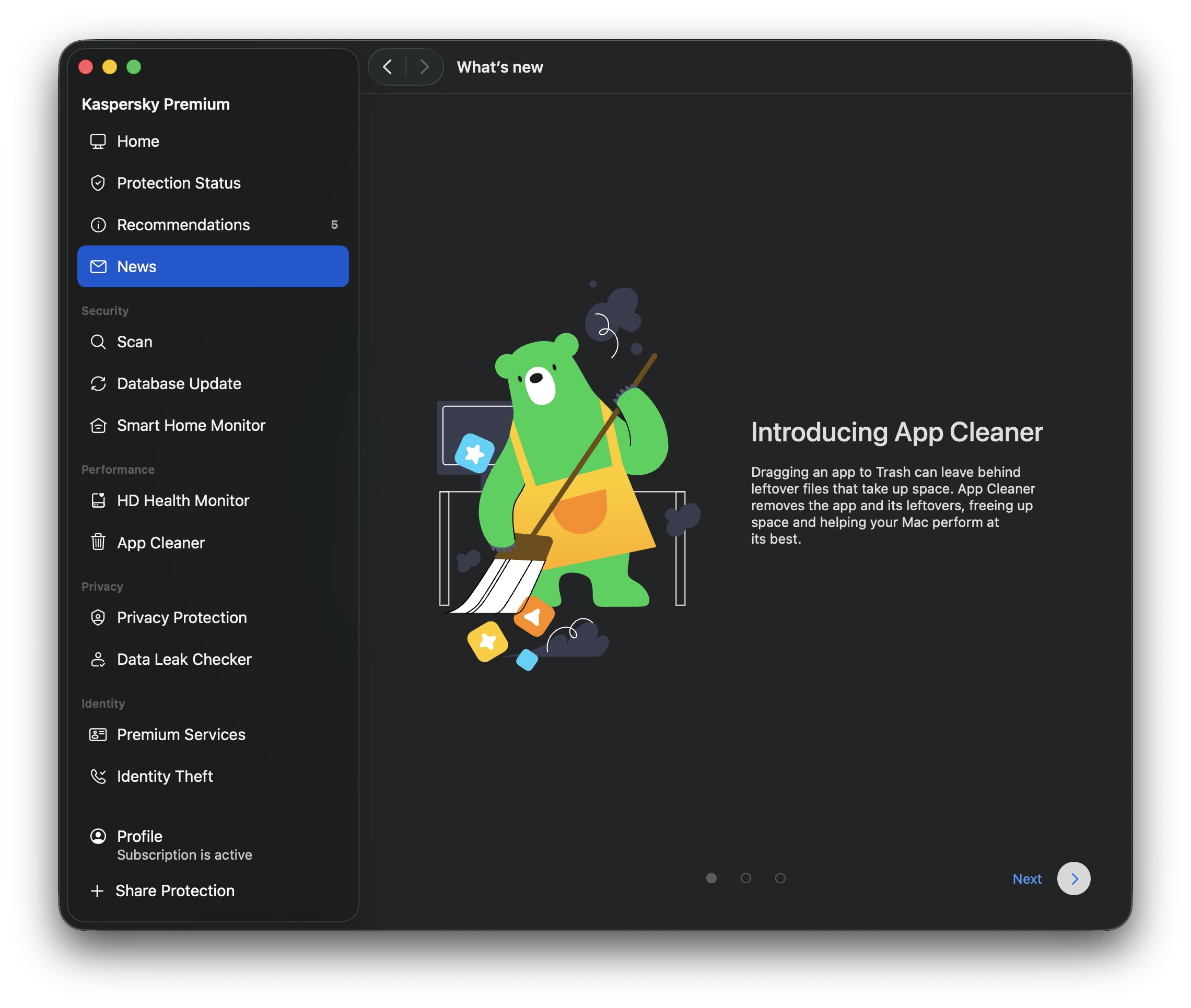
The new App Cleaner feature helps you remove apps along with the files they leave behind
Most of these background files live in special macOS folders. One of the main ones is Library, which contains folders like Application Support (app data) and Caches (temporary files). But Library isn’t easy to get to. Since OS X 10.7, Finder keeps it hidden by default. To find it, open the Go menu in Finder while holding down the Option key. Only then does Library show up.
Even if you’re determined enough to dig through Library, you’ll still have to figure out for yourself which of the many files belong to which apps, and which ones are safe to delete. Fortunately, you don’t have to do this by hand, because that’s exactly what App Cleaner takes care of.
How App Cleaner finds and removes apps without leaving traces
App Cleaner doesn’t just remove the app itself. It also tracks down every file connected to it. It does this by automatically identifying which files belong to which app, mainly using the app’s unique identifier (bundle ID) and typical file locations. This means it can clear out an app’s leftovers even when they’re scattered across different macOS folders.
Keep in mind that a full cleanup like this also removes the app’s saved data, so you’ll need to set things up again — for example, restore browser extensions — if you reinstall it later; you can also lose game save files. That said, App Cleaner never touches your own files. Delete Photoshop with it, and the leftover files disappear while your PSD files stay exactly where they are.
You can’t remove the extra files separately from the app itself. App Cleaner offers to delete them together as one package. But if you’ve already deleted an app the regular way and its data has stuck around, App Cleaner can find and remove that too.
If you accidentally delete something you needed, don’t worry. App Cleaner moves everything to the Trash first rather than deleting it outright. As long as the Trash isn’t emptied, you can restore those files from there, and if you haven’t closed App Cleaner since deleting them, you can restore them directly from the app instead. Files only disappear for good once you empty the Trash. We’ll walk through how to undo an accidental deletion below.
How to remove an app with Kaspersky App Cleaner: a step-by-step guide
Now let’s put this into practice. To use App Cleaner, open Kaspersky Premium for macOS and head to the App Cleaner section. You’ll find it right on the app’s main screen, in its own App Cleaner block, or under Performance in the left-hand menu.
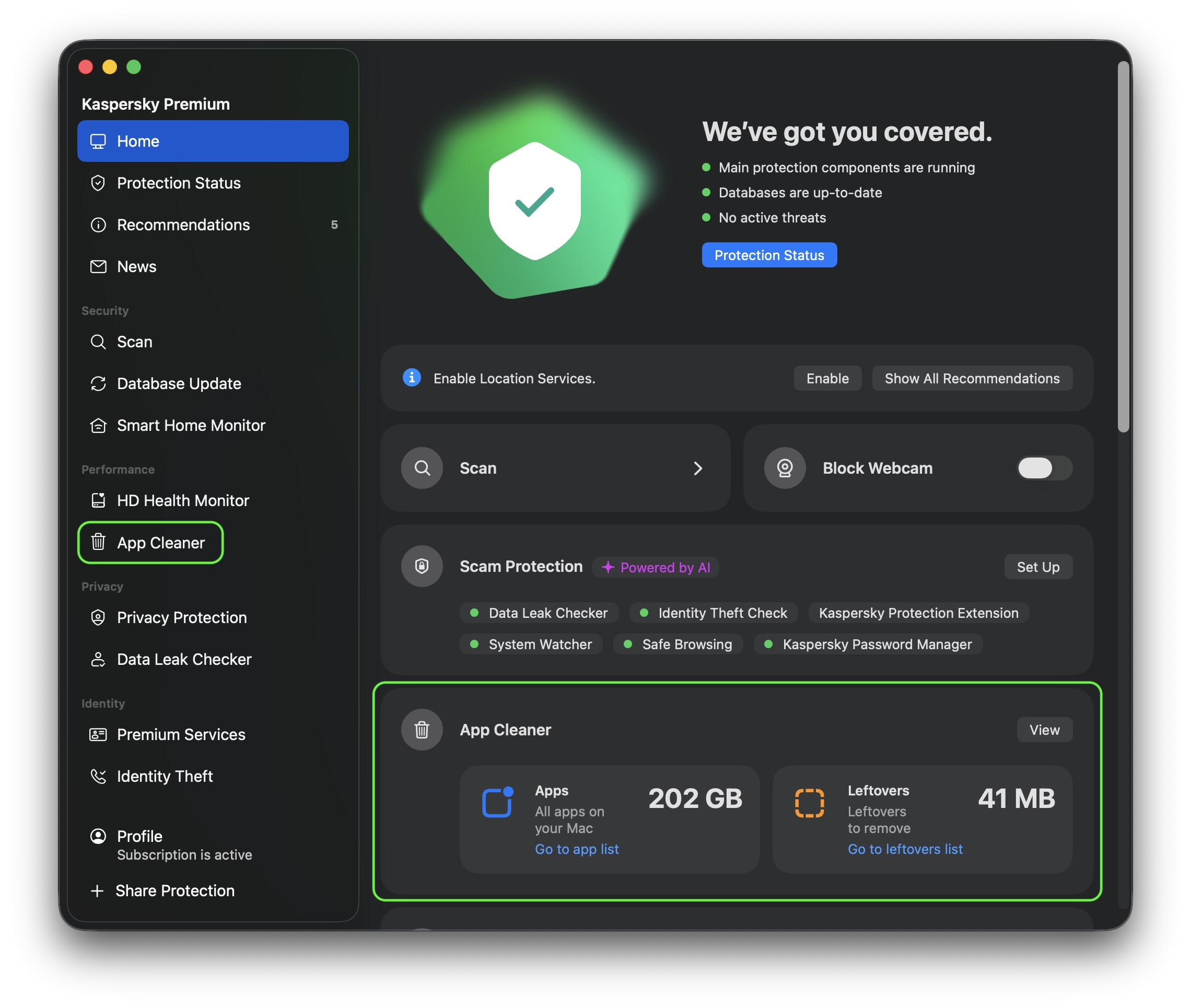
You can open App Cleaner from the main screen of Kaspersky for macOS, or through the Performance section in the left menu
In the Apps tab, you can see every app installed on your Mac. Select the apps you no longer need, click Remove, then confirm your choice to delete them along with all their related files. The deleted files move to the Trash, from where you can restore them if needed. Ready to say goodbye for good? Just empty the Trash.
Before you remove anything, App Cleaner shows you not just the app but every file tied to it that will be deleted along with it, plus how much space each one takes up and where it’s stored. That way, you know exactly what you’re clearing out before you commit.
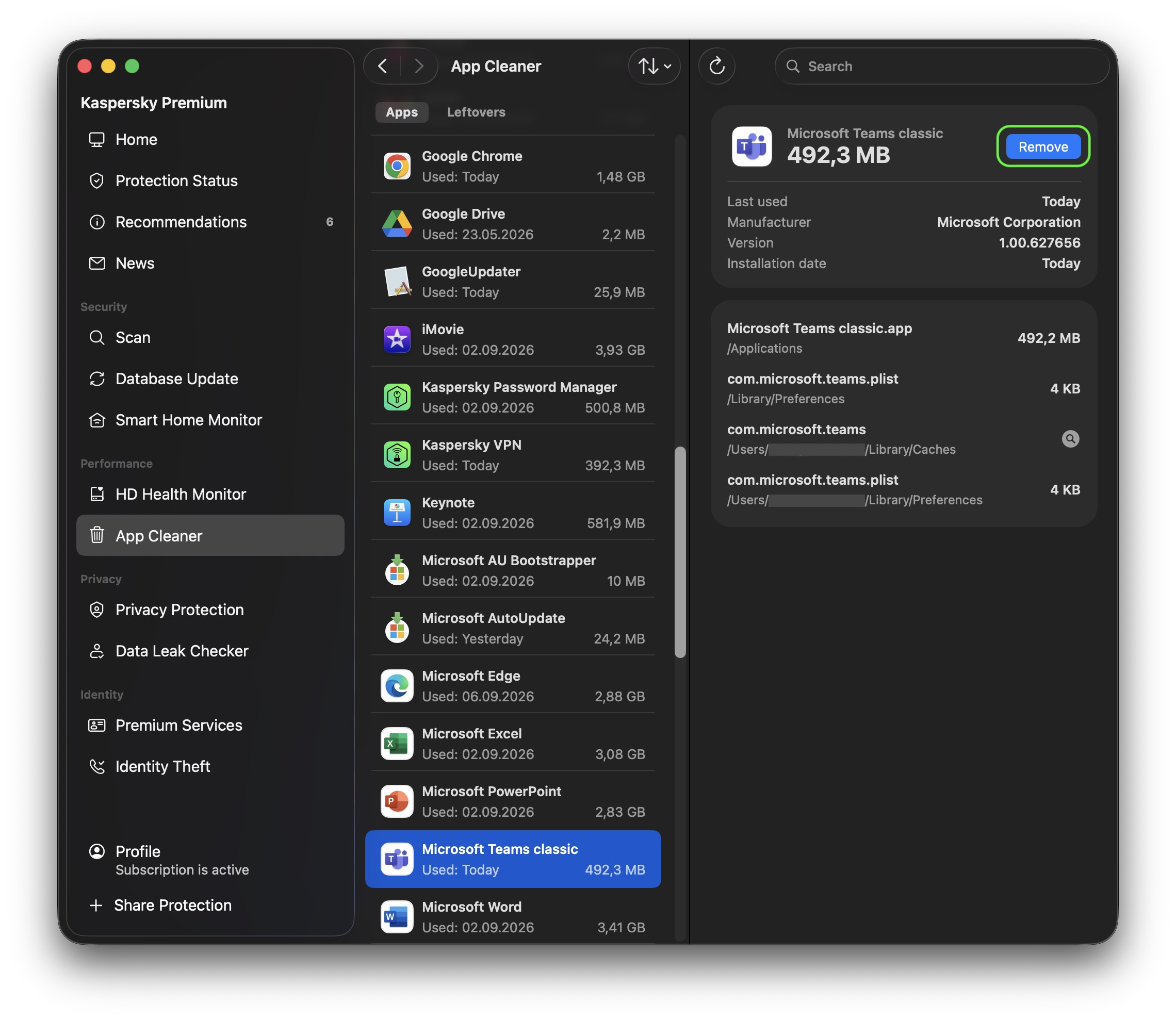
Select the app you want to remove in the Apps tab and click Remove. App Cleaner will delete it along with its related files
App Cleaner also helps users find and delete duplicate copies of applications. For example, those copied by mistake, or when one and the same app was installed from multiple sources. To free up space users caneither remove all duplicates at once or select individual ones.
App Cleaner can also find leftovers from apps you previously deleted the regular way (by dragging them to the Trash). These show up in a separate Leftovers tab, where you can see what’s left, how much space it takes up, and where it’s stored. To clear them out, click Remove, then confirm by clicking Delete. As always, you can restore these files from the Trash if you change your mind.
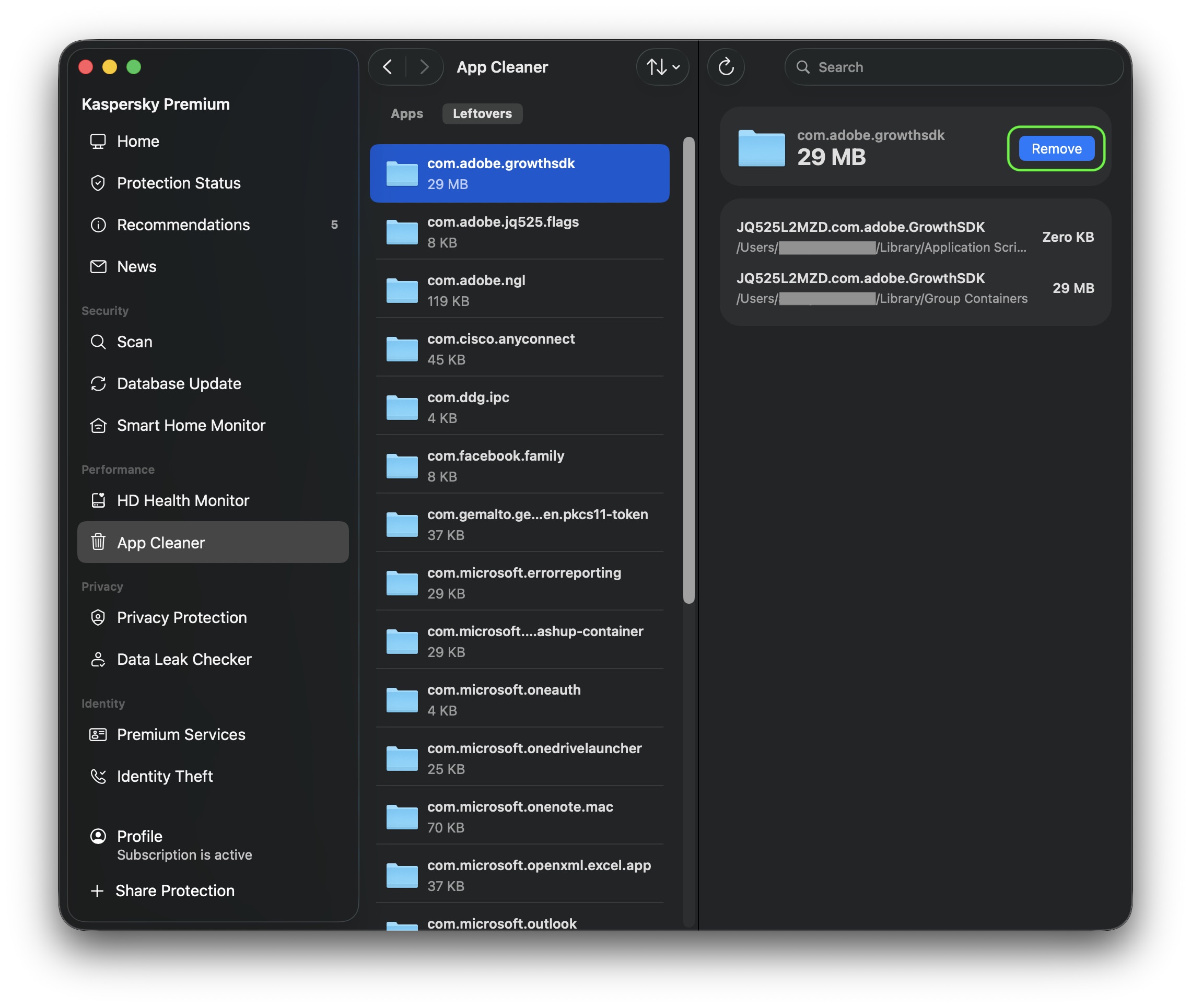
The Leftovers tab collects files left behind by the apps you’ve already deleted. Select the ones you don’t need and click Remove
Before closing Kaspersky Premium for macOS and emptying the Trash, double-check that you haven’t accidentally deleted a piece of software you need. If you have, you can bring back an app along with all its files right from App Cleaner: select the deleted app from the list and click Restore All. Once you close Kaspersky Premium for macOS, you can still recover deleted files from the Trash as long as you don’t empty it yet.
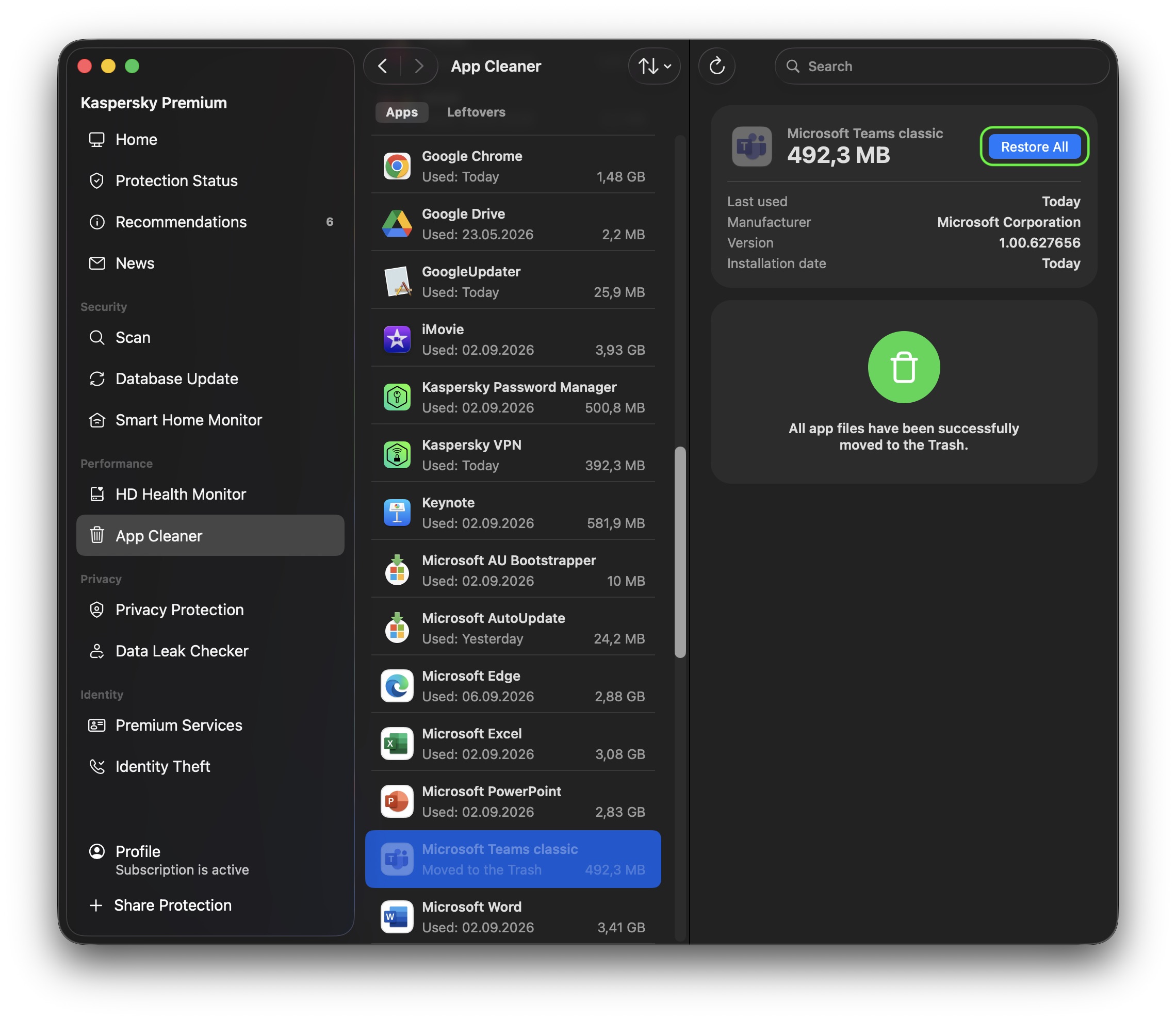
Select the deleted app and click Restore All. App Cleaner will bring it back along with its related files
Leftover files work the same way. As long as Kaspersky Premium for macOS is still open, you can restore them through App Cleaner. Once it’s closed, the Trash is your fallback.
Once your drive is free of clutter, it’s worth checking on its overall health too. That’s where another Kaspersky Premium for macOS feature — Hard Disk Health Monitor — comes in handy.
Not every cleanup tool is safe
When it comes to tidying up a Mac, it’s tempting to just download the first app that promises to clear out junk and free up space. But you should be careful about which program you choose. Criminals often disguise malware as well-known, legitimate Mac cleanup utilities. Kaspersky researchers have already found fake versions posing as CleanMyMac, Mole, and CCleaner Pro.
With Kaspersky, you don’t need to look for a separate cleanup tool at all. App Cleaner is already built into Kaspersky Premium for macOS. That means one solution protects your device from cyberthreats and clears out unwanted app leftovers — without the risk of accidentally downloading harmful software disguised as a cleanup tool.
What else is new in Kaspersky for macOS
App Cleaner helps you tidy up your Mac quickly and safely, freeing up time you can spend sorting through your own files instead — something no app can do for you yet. To get access to App Cleaner and other advanced protection features, purchase Kaspersky Premium for macOS or sign up for a free trial.
That’s not the only new feature in Kaspersky Premium for macOS. The app now includes Scam Protection Hub, a single control center for AI-powered protection against digital fraud. There’s also Shop with Confidence, which is now available across all our home security products. Alongside our longstanding filters for malicious sites, this feature blocks links to gray-area sites, like online stores that copy well-known brands to sell fake goods.
Still think macOS is immune to threats? Think again. Our research has found that Mac users actually run into cyberthreats more often than Windows users! Curious what those threats look like? Check out our other posts: