
What is a password manager?
A password manager is software that helps users create strong passwords, store them securely in an encrypted digital vault, and retrieve them when logging into online accounts.
The vault is protected by a single master password, so users only need to remember one strong credential rather than dozens of separate passwords.
Most password managers also include a password generator that can create long and unique passwords. They will often also have an autofill feature that enters saved login details on recognized websites and apps. This makes it much easier to use a different strong password for every account without having to memorize or manually type each one.
- A password manager securely stores login credentials in an encrypted vault and helps users maintain strong, unique passwords across different accounts.
- Reputable password managers can significantly improve password security, but no solution is completely risk-free.
- Modern password managers may also offer password health checks, breach alerts, passkey support, cross-device synchronization, and secure storage for other sensitive information.
- A strong, unique master password or passphrase and multi-factor authentication are important for protecting access to the vault.
- When choosing a password manager, consider security architecture, recovery options, device and browser compatibility, synchronization, ease of use, and transparent security practices
How does a password manager work?
A password manager works by saving login credentials in an encrypted digital vault. It can then retrieve them when they are needed. The single master password works as the key to the vault: it protects access to the credentials and other information stored inside.
From the user’s perspective, the process is straightforward:
- Create or save credentials: When signing up for a website, such as an online store, the password manager can generate a strong, unique password and save the new login credentials.
- Encrypt and store them: The credentials are stored in a protected vault that is unlocked with a master password. Many password managers can also store other sensitive information such as documents and ID in the encrypted vault.
- Sync across devices: Where supported, the encrypted vault can synchronize across phones, tablets, and computers so saved credentials remain available on different devices.
- Retrieve and autofill: When users return to a recognized website or app, the password manager can retrieve and automatically fill in saved credentials. Many password managers also offer browser extensions that help save and autofill logins while browsing.
Password managers may also keep track of any changes made to usernames and passwords within the vault, and offer to update the stored information for that website or app as needed.
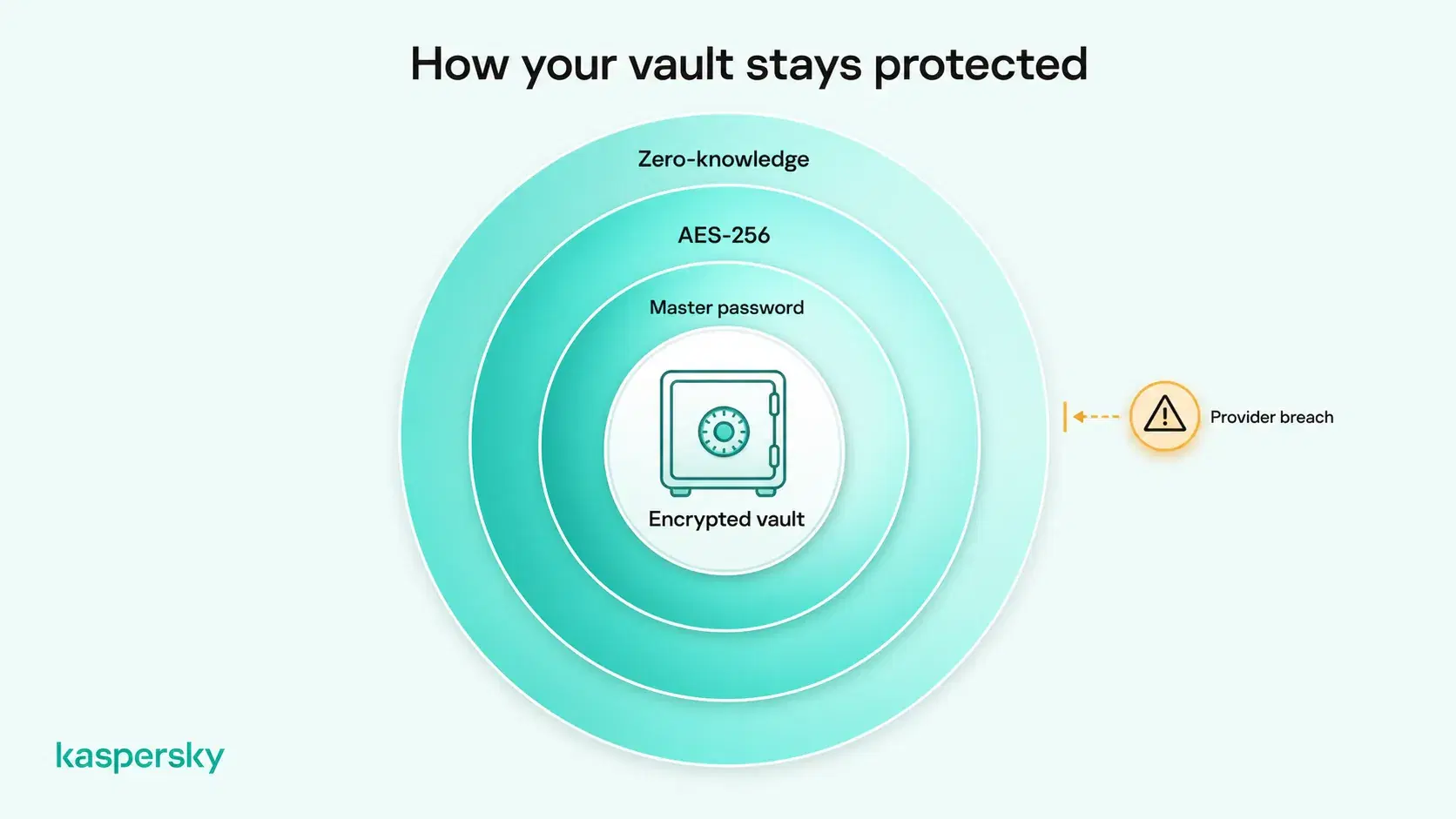
Password managers encrypt stored credentials to protect them from unauthorized access. Some also use a zero-knowledge architecture, meaning the provider cannot decrypt the contents of the user's vault. Kaspersky Password Manager uses AES-256 encryption and a zero-knowledge architecture to protect stored information.
What can a password manager do?
Modern password managers can handle much more than basic password storage.
|
Capability |
Why it matters |
|
Encrypted password vault |
Protects passwords and other sensitive information in one secure location |
|
Password generator |
Creates strong, unique passwords for different accounts |
|
Autofill |
Makes complex passwords easier to use without the user having to remember or manually enter them |
|
Password health checks |
Helps identify weak, reused, or compromised passwords |
|
Cross-device synchronization |
Makes saved credentials available across supported devices |
|
Authentication support |
Can generate two-factor authentication codes for supported accounts |
|
Passkey support |
Helps manage newer passwordless credentials and passkeys alongside traditional passwords |
|
Secure data storage |
Protects sensitive information such as documents, payment details, addresses, and official IDs |
These capabilities are reflected in current password managers. Kaspersky Password Manager supports password generation, autofill, cross-device synchronization, passkeys, an in-app authenticator, password health checks, and encrypted storage for documents and payment information.
Autofill can provide a useful warning about potential phishing. If a familiar login page does not trigger the expected autofill suggestion, check the website address carefully. A fake site may use a different domain that does not match your saved credentials. However, autofill can also fail on legitimate websites, so its behavior alone cannot confirm whether a site is safe.
Are password managers safe?
Reputable password managers can significantly improve password security, but no security tool is completely risk-free. In most cases, storing strong, unique passwords in an encrypted vault is safer than reusing passwords or keeping credentials in unsecured notes or spreadsheets.
One common concern is that a password manager stores many credentials in one place. That makes the vault especially important to protect. It does not mean every password is automatically exposed if the service is attacked. Strong encryption can make stolen vault data extremely difficult to decipher without the credentials or cryptographic keys needed to unlock it.
Encryption is only one part of password-manager security. Password managers cannot prevent every attack, such as users entering credentials on phishing websites or malware compromising their devices. Using a strong master password or passphrase, enabling multi-factor authentication where supported, and keeping devices updated can help reduce these risks.
Can password managers be hacked?
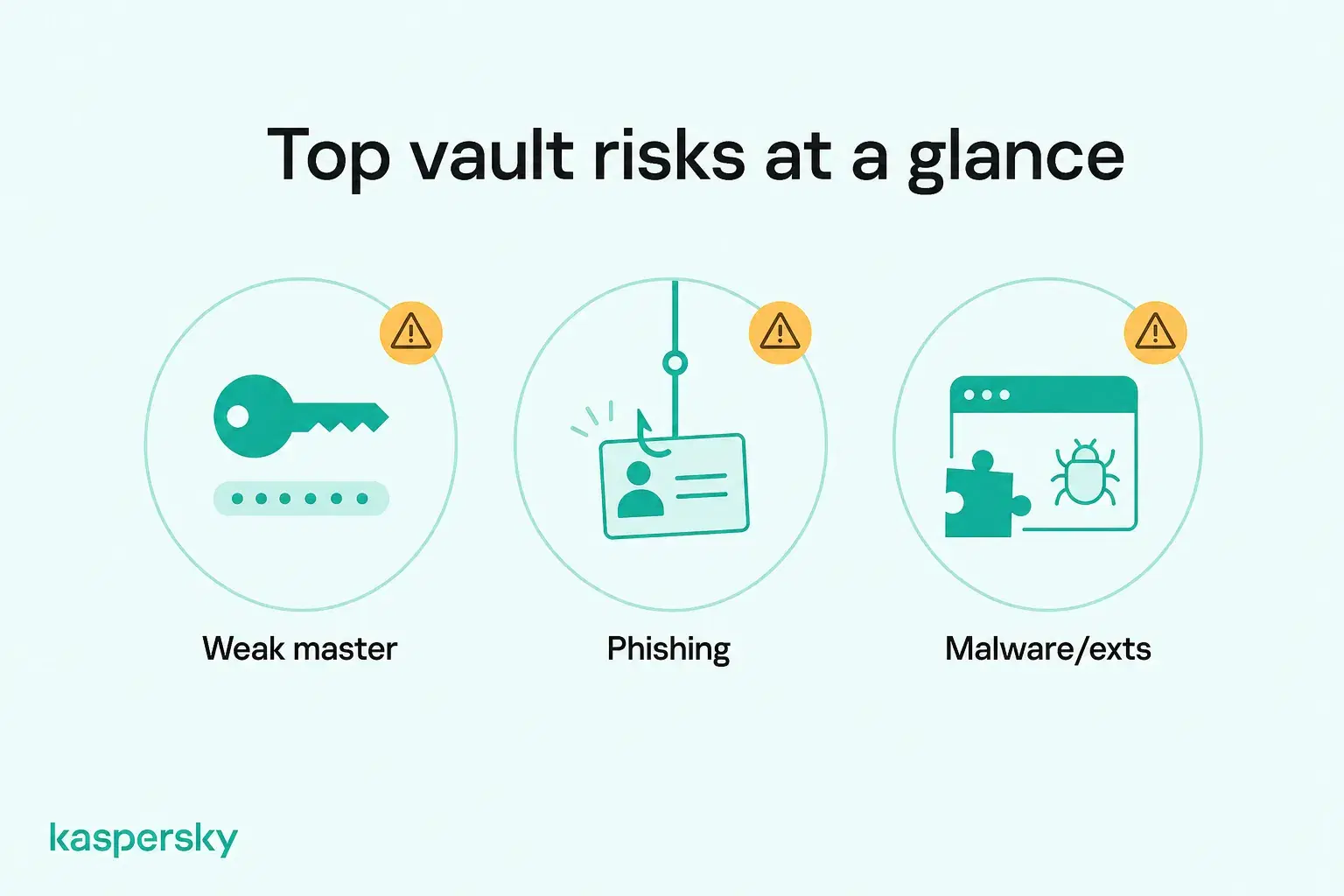
Yes. Password managers, their providers, and individual users can all potentially be targeted. Common risks include:
- A weak or compromised master password.
- Phishing that tricks users into revealing vault credentials.
- Malware or malicious browser extensions that capture sensitive information.
- Security vulnerabilities in the password manager software.
- A provider breach that exposes account information or encrypted vault data.
A breach of a password manager provider does not automatically mean attackers can access users' passwords. The consequences depend on what information was exposed, how the vault is protected, and whether attackers also obtained the information needed to decrypt it.
Some password managers also use a zero-knowledge architecture, which means the provider does not have access to the information needed to decrypt the contents of the user’s vault. This can reduce the impact of a provider-side breach, although it does not remove risks such as phishing, malware, or compromised authentication credentials.
How can you use a password manager safely?
A key part of password manager security is the strength of the master password. It should be strong, unique, and never reused for another account.
You can add another layer of protection by enabling multi-factor authentication (MFA). Enable MFA where supported to add protection against unauthorized access. Depending on the password manager, this may involve an authenticator app or hardware security key. Fingerprint and facial recognition can also provide convenient access on supported devices.
Other useful steps include:
- Keep the password manager, browser extension, browser, and devices updated so the latest security fixes are installed.
- Set up a secure recovery method so access can be restored safely if needed.
- Respond promptly to warnings that a password is weak, reused, or compromised. Replace it with a new unique password.
- Review account and device access periodically and remove anything you no longer use.
Independently tested and awarded by the industry's leading labs.



Why should I use a password manager?
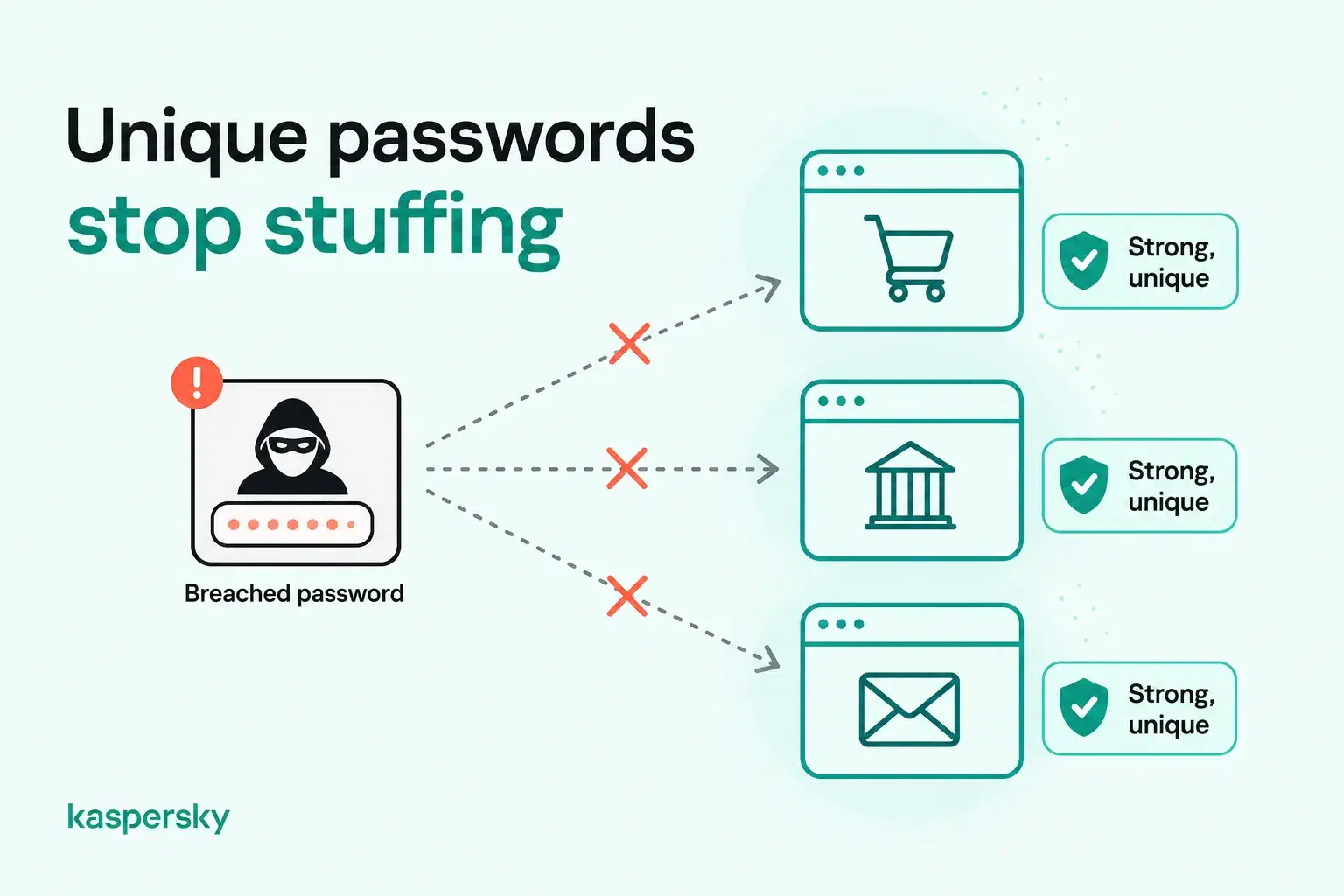
Using a password manager makes it easier to protect every account with a strong, unique password. If criminals obtain a password in a data breach, they may try it on other websites in an attack known as credential stuffing. Unique passwords help prevent one compromised account from putting others at risk.
Remembering a different strong password for every online account quickly becomes impractical. Strong passwords should be long, unique, and difficult to predict, avoiding personal information or familiar patterns. A password manager can generate and securely store these passwords, so users don't have to memorize them.
There are also practical everyday benefits. Password managers can make logins quicker, reduce forgotten-password resets, and keep credentials available across supported phones, laptops, and tablets.
Password health checks can also help identify weak, reused, or compromised credentials, making it easier to strengthen accounts that are already at risk.
What types of password managers are there?
Password managers generally fall into three common categories: browser-based, standalone or cloud-synced, and local or offline. Some products combine features from more than one category, but each approach offers a different balance of convenience, synchronization, and control.
Browser-based password managers
These are built into web browsers or operating-system ecosystems and can save and autofill credentials during everyday browsing. They are convenient and often synchronize automatically across devices signed into the same account.
Browser-based managers can provide strong encryption and useful security features, so they should not automatically be considered insecure. Their main limitation is often ecosystem dependence. Users who regularly switch between browsers or operating systems may find them less flexible than a dedicated service.
Standalone or cloud-synced password managers
Standalone password managers are dedicated apps or services designed specifically for credential management. They typically offer encrypted vaults plus cross-device synchronization, password generation, autofill, password health checks, passkey support, and storage for other sensitive data.
They are often a good fit for users who want one password manager to work consistently across several browsers and operating systems. The trade-off is that the user is trusting an additional provider to securely store and synchronize encrypted vault data.
Local or offline password managers
Local password managers store the vault on the user's own device rather than synchronizing it automatically through a cloud service.
This can provide more direct control over where the vault is stored. It also means the user may need to handle backups and synchronization manually. That makes them less convenient for people who frequently move between numerous devices.
A built-in browser password manager may be sufficient for someone who mostly uses one operating system or browser and wants straightforward password storage and autofill. A dedicated password manager can make more sense for users who want broader cross-platform support, additional security features, and more control over how credentials are managed.
How do you choose a password manager?
The best password manager combines strong security with features you'll actually use. Look for reliable encryption, transparent security practices, secure recovery options, and compatibility with your devices. Password generation, autofill, and synchronization should also make it easy to protect your accounts without adding unnecessary complexity.
Useful criteria include:
- Strong encryption and security architecture: Choose a password manager that uses industry-standard encryption, such as AES-256, and clearly explains how your data is protected. A zero-knowledge architecture can provide additional reassurance by preventing the provider from decrypting your vault.
- Multi-factor authentication (MFA): Additional authentication can make it harder for someone to access the vault even if the master password is compromised.
- Secure recovery options: Find out whether the provider offers recovery keys, trusted-device recovery, or other secure methods for regaining access. Understand what happens if you lose both your master password and your recovery options.
- Password generation and autofill: These features make it easier to create and actually use strong, unique passwords across different accounts.
- Password health and breach monitoring: Check whether the manager identifies weak, reused, or compromised passwords and provides clear recommendations for replacing them.
- Device and browser compatibility: Make sure the password manager works with the phones, computers, operating systems, and browsers you use. This is one of the most practical considerations when choosing a service.
- Cross-device synchronization: If you use several devices, look for secure syncing so credentials stay available when needed.
- Passkey support: Check whether the password manager can save, manage, and use passkeys on your preferred devices and browsers, especially if you already use passwordless sign-ins.
- Transparent security practices: Providers should clearly explain their encryption, privacy model, update process, and how security issues are handled.
Ease of use matters too. A password manager only improves security if it is comfortable enough to use consistently, so it should fit naturally into everyday browsing and sign-in habits.
Kaspersky Password Manager brings these features together in one solution. It uses AES-256 encryption and a zero-knowledge architecture to protect stored information, while password generation, autofill, and cross-device synchronization make managing strong, unique passwords easier. Additional features, including password health checks and an in-app authenticator, help users manage their credentials and improve account security
Price can also be a consideration, but it should come after security and usability. Free or trial versions can be useful for testing whether a password manager fits your needs before committing to a paid plan.
Related Articles:
- Tips for creating a strong and unique password
- How to avoid data theft
- What is 2FA and how does it enhance online security?
- How does identity security enhance protection for your digital identity?
Related Products:
- Kaspersky Premium with built-in Password Manager
- Download a free 30-day trial of our premium plan
- Kaspersky Mobile Security
FAQs
What happens if I forget my master password?
Recovery options vary between password managers. Some provide secure recovery methods, while zero-knowledge services may be unable to recover the master password for you. Review and configure any available recovery options before they are needed.
Can I transfer my passwords to a new password manager?
Yes. Many password managers support importing credentials from browsers or other password managers. If the transfer requires an unencrypted export file such as a CSV, delete it securely after confirming that the passwords were imported successfully.
Can I access my passwords without an internet connection?
Often, yes. Many password managers keep an encrypted local copy of the vault on the device, allowing access offline. Syncing and some online features will require an internet connection.
Can I use a password manager on multiple devices?
Yes, if the password manager supports cross-device synchronization. This can make the same encrypted vault available across supported devices.